
Choosing Your Post Type
Every post on Rippl fits into a specific category to keep the community feed organized and helpful. Discover how to properly label your posts to connect with the right audience.
Standard Community Posts
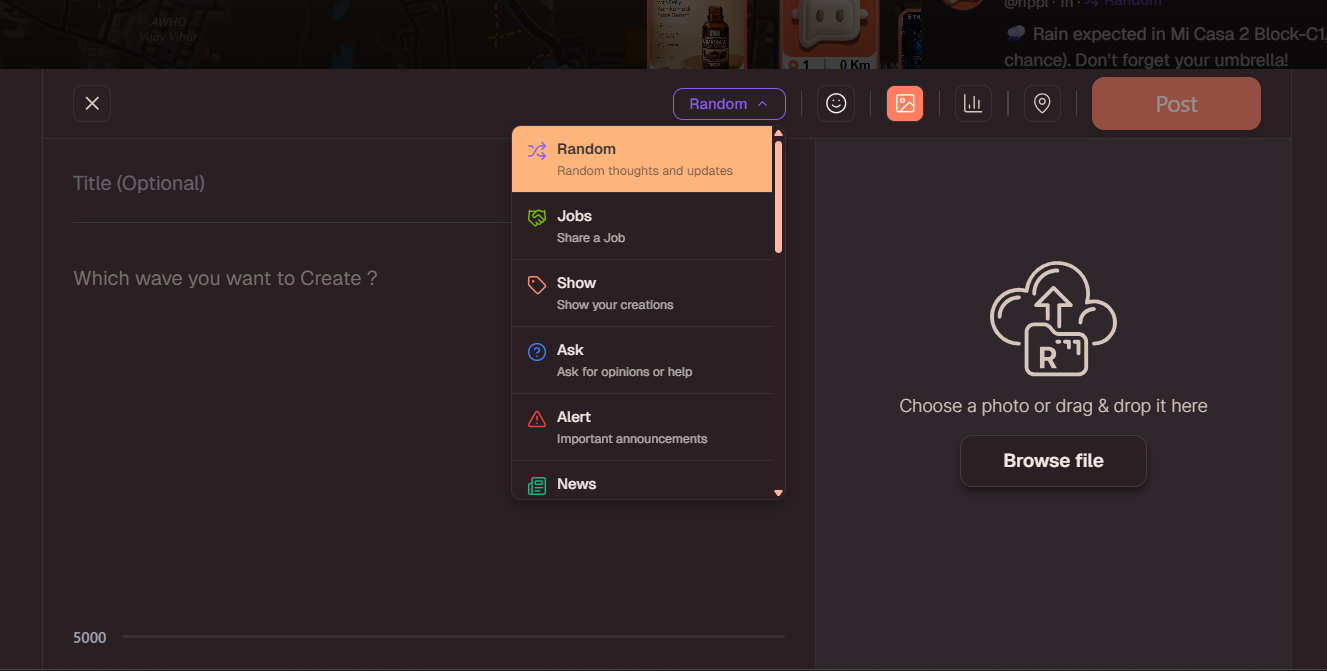
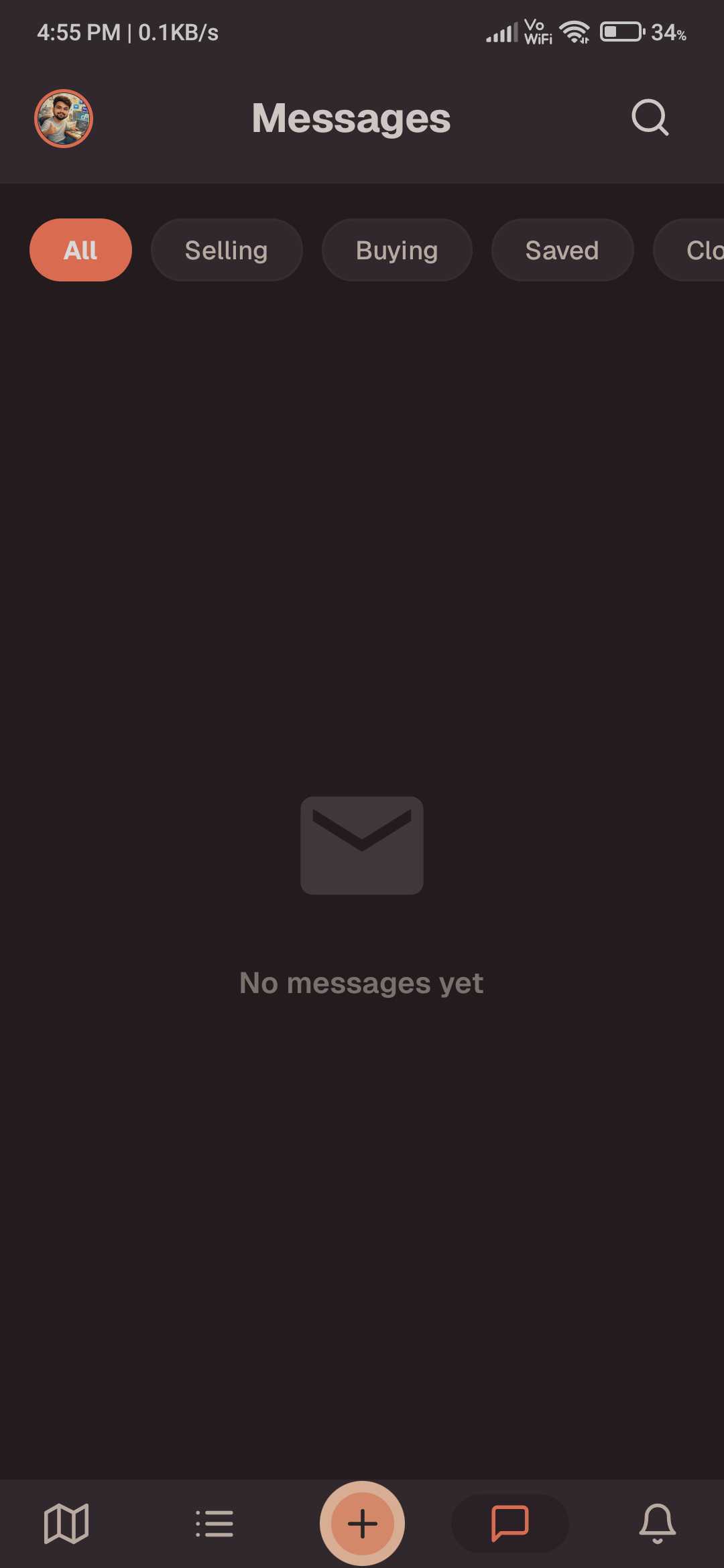
These core post types represent the heartbeat of the Rippl community. Select the tag that best describes the intention of your message:
Interactive Commerce Posts
For classified listings and real estate, Rippl uses specialized tags: Sell, Buy, and Rent. These post types come with powerful built-in Direct Messaging (DM) features to facilitate secure exchanges.
- •Direct Messaging: Only these specific post types have a "Send DM" option. If a neighbor answers your listing, they can send a secure message inquiring about the item or property.
- •Message Requests: As the post owner, you have total control. You can review incoming requests and choose to either Accept or Reject the DM before starting a chat.
- •Closing Lists: Once an item is sold or a property is rented, you can mark the post as "Closed". A visible "Closed" tag will appear on the post, and no further DMs can be sent.
Accessing Your Chats
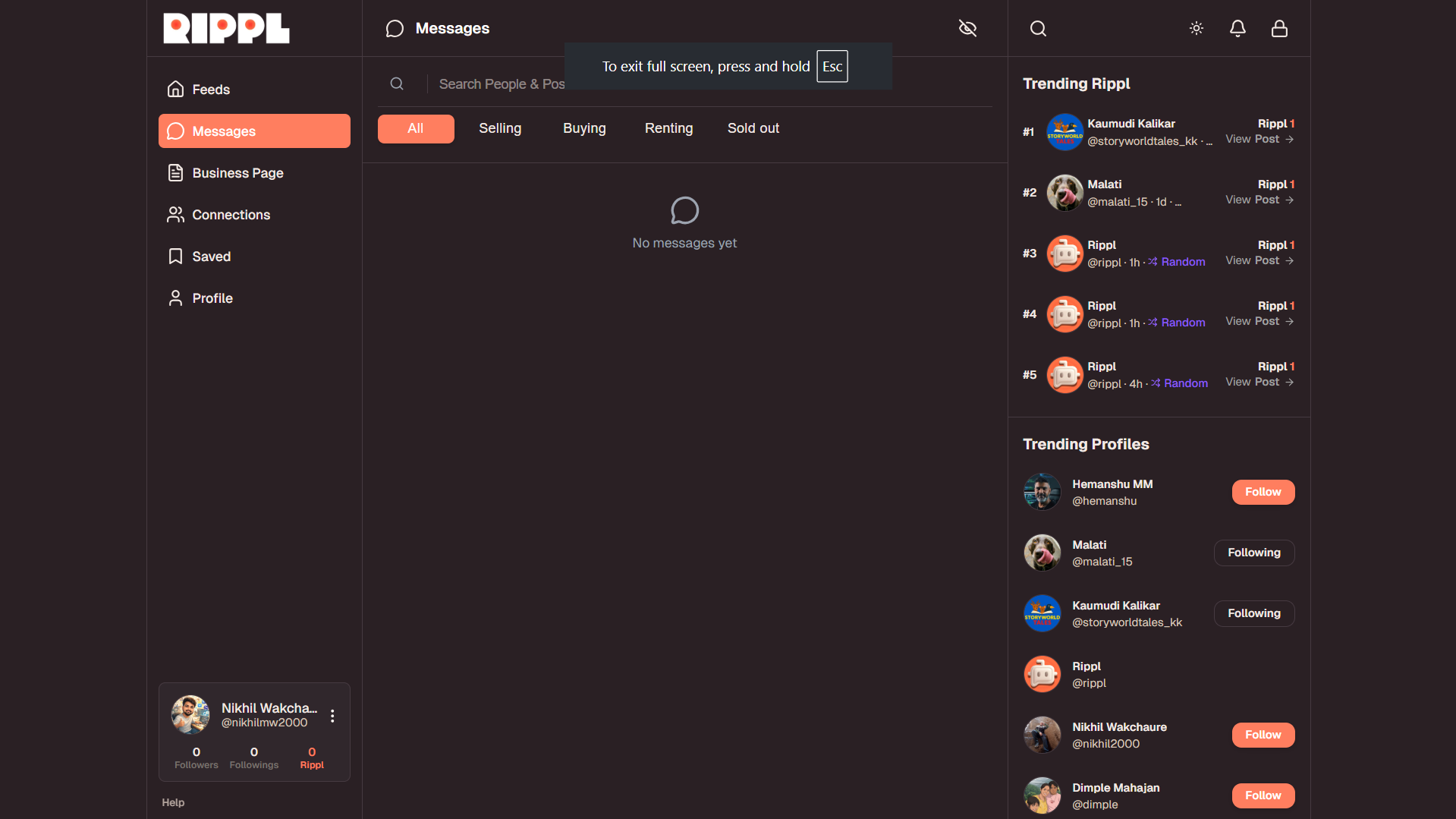
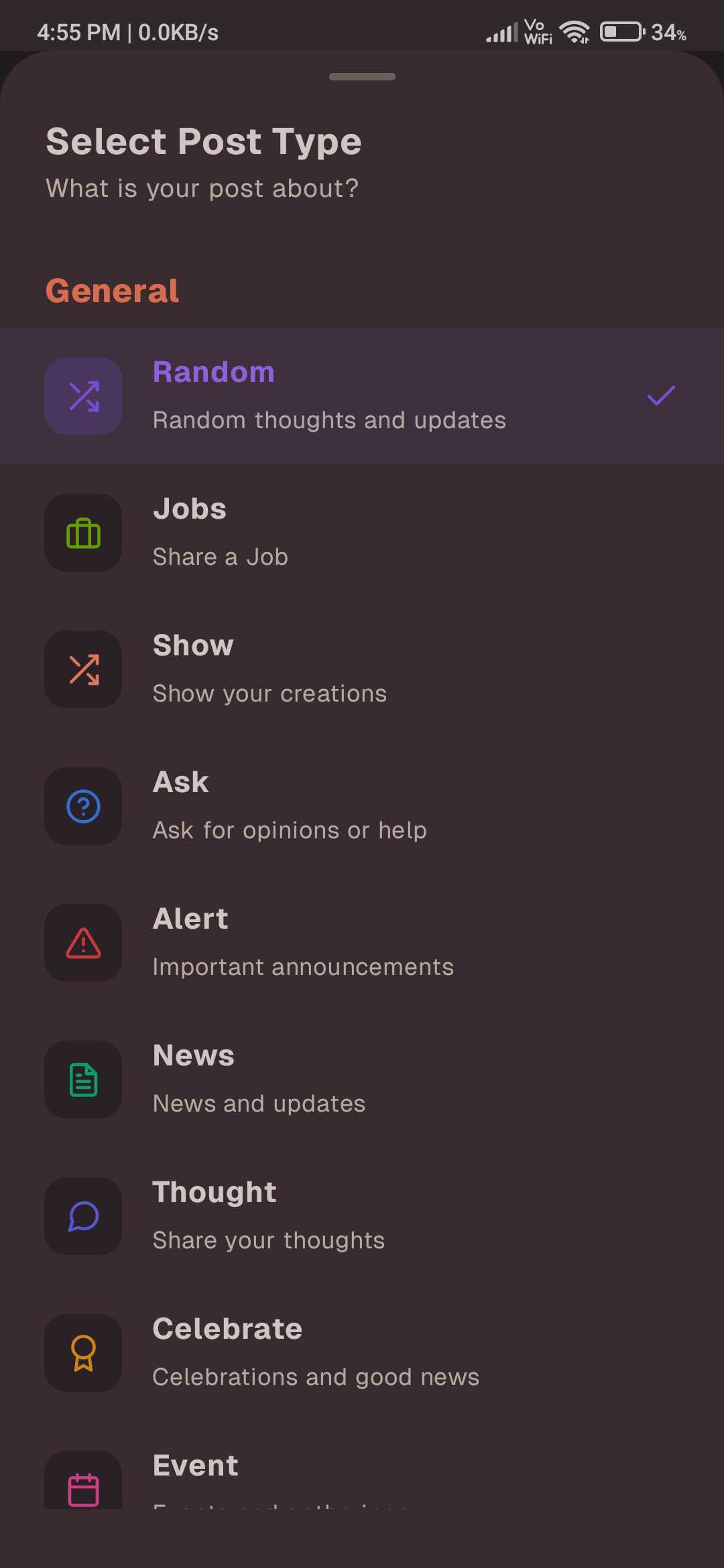
Keeping track of your inquiries and negotiations is easy. To view your previous or ongoing conversations, navigate to the Left Navigation Menu (the main sidebar of the app) and click on Messages.
Inside the Messages hub, you'll find all your accepted chats and pending requests related to your commerce posts.
Need more help?
If you have issues managing your DMs or selecting the correct post type, reach out to us at [email protected].